In this tutorial, I will use OverPy syntax as it is simpler and some tips rely on OverPy features. Feel free to edit it with the Workshop equivalent.
Strings
- Localized Strings (the
String()function) are completely legacy and should never be used. When dealing with strings, always useCustom String(). - Each
Custom String()has a limit of 128 characters (not bytes). You can get past this limit by just concatenating a string into another one:Custom String("lotta text...{0}", Custom String("more text")). OverPy has automatic string splitting so you don't need to worry about that if using it. - There used to be a 511 byte limit in total for strings (including concatenated strings), but it was removed. This means you can concatenate as many strings as you want without worrying about your string getting cut off.
- You can only have up to 4 icons/textures in a string. This limit cannot be bypassed.
- Having a lot of strings in your gamemode makes it lag more at the start (when a player joins). This is unavoidable.
- Strings are encoded in UTF-8, though this is pretty irrelevant.
- Newlines are supported in strings, however there is a bug where putting a newline at the start of a string will display a square character. To fix that, simply start the string with a space.
- If you have a problem with censors, you can use a zero-width space (
"\z"in OverPy, or U+00AD ""). Please don't abuse this obviously or I'll have to find another character... - The number 1488 is censored (for this reason). This includes in the inspector. It is recommended to use
String Replace()to eg replace"1488"by"14\z88", if you are displaying an important number.
Translations
You can translate your gamemode using client-side language detection. See https://github.com/Zezombye/overpy/wiki/Dynamic-translations for more explanation. https://workshop.codes/editor provides the @translate macro for easier use.
Fonts
There are four fonts:
- Industry Black, which is used in the "header" part of
Create HUD Text(). (todo: does this font change between languages? japanese stays the same) - Big Noodle, which is only used in Big Message(). This is the signature italic OW font
- Config, which is used everywhere else, except for:
Blizzard Global, which is used as a fallback font (if the above fonts do not have a character, the entire string will be converted to that font), as well as a font for
Create Progress Bar In-World Text().You can download the fonts here and view them using this webapp (the windows CharMap.exe is buggy with some fonts).
You can force a string to be Blizzard Global by using the Line Separator character (" ") instead of a space.
Only the Blizzard Global font is consistent across all languages. This means that if you are doing alignment tricks with HUDs/texts, you need to use that font, or to use translations to manually align it in each of the five Asian languages who use different fonts. (The easiest way is to just use Blizzard Global.) Otherwise, your UI will break on other languages.
Textures & colors
You can use textures and colors in string by using the bypass found here.
Compression
Strings are useful for data storage (eg lots of vectors) as they take less elements than what storing each vector would require.
This can be achieved in many different ways, the simplest way being to store using separators such as "1,2,3;4,5,6;7,8,9" then use string functions to translate that into [vect(1,2,3), vect(4,5,6), vect(7,8,9)]. This is left as an exercise to the reader.
However, when using compression, never use letters and numbers. This is because censors are applied using the language of the host of the lobby (more specifically, the host who last edited or loaded the code). If something is censored, it will be replaced by stars, breaking your mode; and since censors vary by language, your mode can be broken on some languages. (Good luck debugging that.) The above example should be something like _,&,~;-,|,^;$,!,? using an alphabet of /_&~-|^$!? for 0123456789. This only apply if you store data in strings, if your strings are meant to be displayed to a human, stars are fine.
HUDs
HUDs are displayed directly on the screen. They are the functions Create HUD Text() and Create Progress Bar HUD Text().
- Positions can either be left, top (center), or right. The Z-index is left < right < top. This means that, if HUDs are overlayed, the top HUD will be on top of the right HUD, which will be on top of the left HUD.
- The left and right HUDs start at the same height, but not the top one. This means you can easily overlay right and left HUDs, but not right and top, or left and top.
- Use newlines liberally. You can remove the objective description and the killfeed (or push them down) by doing so. Or just put your HUDs farther down the screen.
- (todo: can we get resolution other than 16/9 now? if so, then doing alignment tricks with HUDs is not recommended as it would break on other resolutions)
- Each HUD within its group is centered relative to the entire group. This is extremely annoying and to fix that, you can just add a lot of spaces after your string. OverPy has
Math.FUCKTON_OF_SPACESfor this. - A right HUD has to have a negative sort order so it is above the killfeed. Otherwise, the killfeed will shift it down.
If your gamemode doesn't really need the killfeed, then you can also add a lot of spaces to make a right HUD the equivalent of a left HUD.
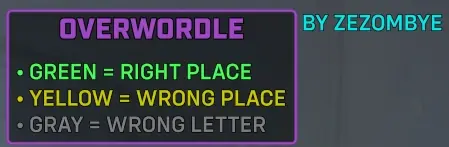
In the above screenshot, the instructions are right HUDs:hudText(..., " Overwordle \n\n\n", null, "by Zezombye{0}".format(Math.FUCKTON_OF_SPACES), HudPosition.LEFT, ...) hudText(..., " \n • Green = right place{0}".format(Math.FUCKTON_OF_SPACES), HudPosition.RIGHT, ...) hudText(..., " • Yellow = wrong place{0}".format(Math.FUCKTON_OF_SPACES), HudPosition.RIGHT, ...) hudText(..., " • Gray = wrong letter{0}".format(Math.FUCKTON_OF_SPACES), HudPosition.RIGHT, ...)Note that we are using alignment tricks without using the Blizzard Global font, and as such this doesn't look as good in other languages (eg in Japanese the "•" character triggers the Blizzard Global font which makes the instructions get out from the header box).
If you have one left/right HUD with a fuckton of spaces, all remaining HUDs will be centered (unless they themselves have the spaces). This can be useful if you want to display something on the center of the screen without relying on the top HUD.
The HUD header will not display if the value is
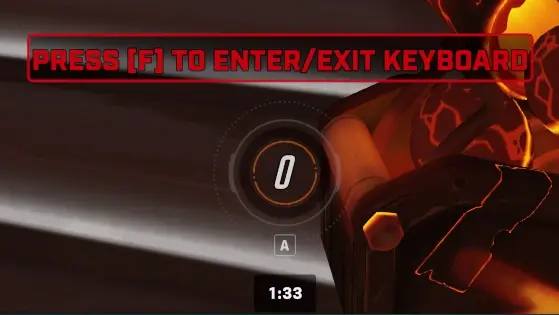
null. This does not work ifnullis put into a variable (else it will display 0). It will also not display if the value is the empty string"".By putting a zero-width space in the HUD text+subheader, you can toggle an HUD header without affecting the alignment of anything else. For example:
This HUD header is a top HUD. If I simply didn't display it, it would shift upwards the time remaining (which I shifted down to the bottom of the screen using newlines). If I put spaces in the HUD text+subheader, the HUD would be shifted left as it would break the centering.
IWTs
IWTs (In World Texts) are the functions Create In-World Text() and Create Progress Bar In-World Text(). Referred to as IWT and PIWT respectively.
- You can only have a maximum of 128 IWT/PIWT (combined). This cannot be bypassed.
- The size of IWT/PIWTs actually gets smaller with distance. This is a small effect but is visible at large distances.
- A PIWT has 1.25x the size of an IWT.
- A PIWT doesn't have an outline as thick as an IWT, which might make them more desirable for UIs. However, they only have the Blizzard Global font.
- The display position of IWT/PIWTs is very hard to calculate. As such, when doing a complex UI with IWT/PIWTs, it is very recommended that you put all your texts at the very same position, and then use newlines and spaces to align them on screen. Do not use vector calculations (eg putting one text at
vect(10, 6, 10)and another atvect(10, 7, 10)); make the first text have a newline before and the second text have a newline after, so that all texts have the same amount of lines and will naturally be overlayed. - IWT/PIWTs will be horizontally centered based on the position. However, the text within it will be left aligned. Therefore, if you want centered text, you have to use the newline trick described above.
- For every line in your text, an IWT will shift down by half a line. In practice, this means that if you want your IWT to stay consistent vertically, for each newline you add at the bottom, you need two newlines on top. This seems to vary based on the distance to the player but also based on the angle (hence why IWTs/PIWTs should be horizontally at the center of the screen for an UI). (todo: is there a concrete formula for this?)
- PIWTs are simpler, they do not shift down at all. The bottom of the text is at the position you specified. This means you can simply get rid of the progress bar by putting a bunch of newlines before your text.
- As of OW2, trailing spaces are removed in IWT/PIWTs. To counter this, add a zero-width space at the end of each line.
- IWT/PIWTs can only be put in a bounding box of +/- 2000 on any axis. Since the playable area is +/- 1000, this means your cursor menus should be 1000m from the player as to reduce sway without introducing bugs.
Alignment tricks
Keep in mind that you need the Blizzard Global font for it to be consistent across all languages.
- You can shift up/down using newlines, and left/right by putting the same amount of spaces across every line. (Shifting left is easier, as you just have to put spaces in one of the lines)
- Using OverPy, you can use lowercased letters. This is done by using fullwidth characters (which do not get uppercased) and overlaying multiple strings with use of special spaces to get the exact kerning.
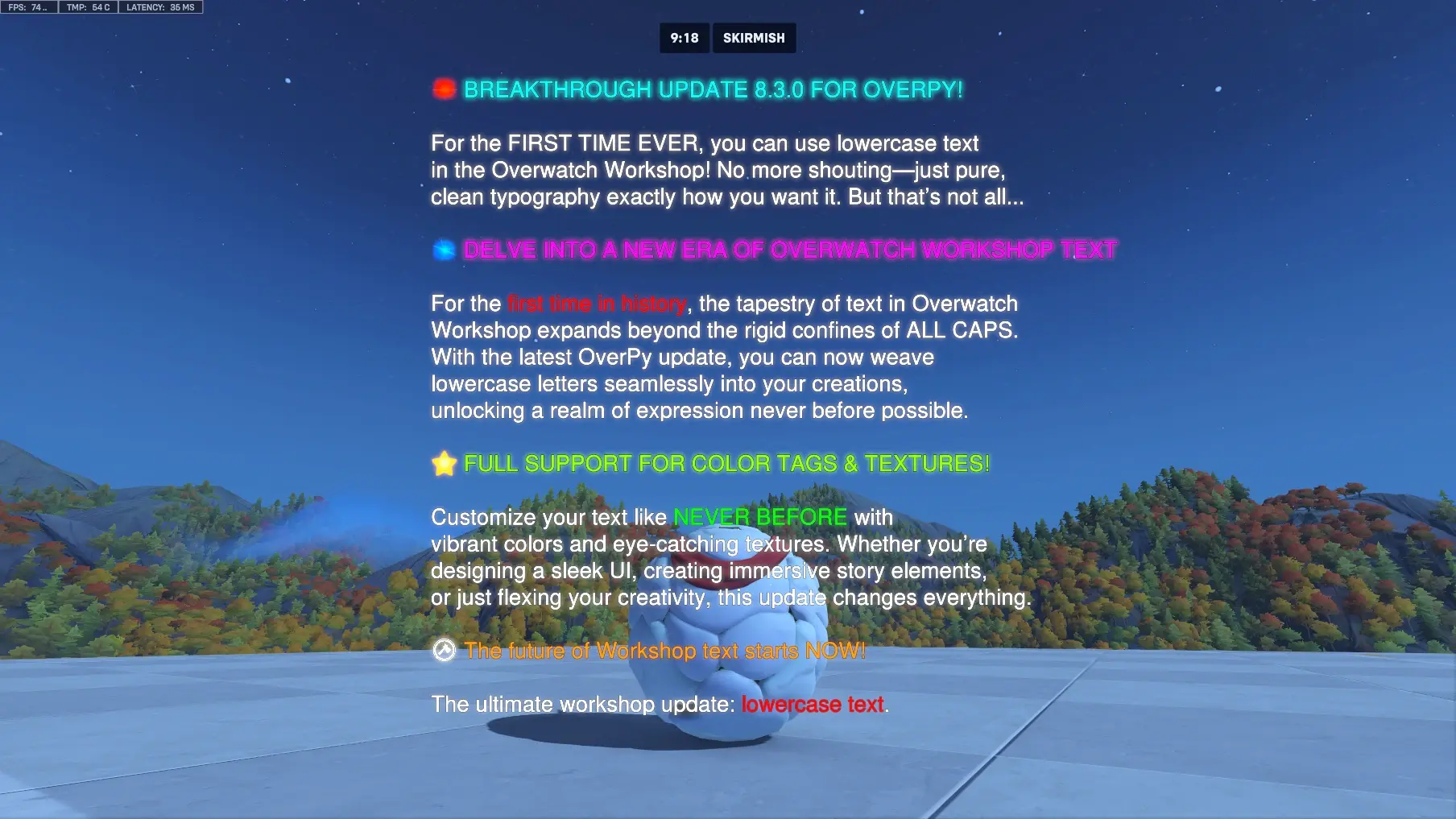
The createCasedProgressBarIwt can be used for this.
- You can "right-align relative to center" by putting the text twice on a line (separated by any amount of spaces, this will determine your distance to the center), having a bunch of newlines, then putting the text again. For example:
createInWorldText(..., "some text some text\n\n\n\n\n\n\n\n\n\n\n\n\n\n\n\n\n\n\n\n\n\n\n\n\n\n\n\n\n\n\n\n\n\n\n\n\n\n\n\n\nsome text\n\n\n\n", ...). This one works with all fonts. - Doing left-align relative to center is more difficult and requires the
spacesForString()OverPy macro. You need to have a specific amount and kinds of spaces to replicate the exact kerning. You basically repeat the string twice, but the left side is completely invisible as it is composed of spaces. - Using the same macro, you can do right-align relative to center without messing too much with newlines.
The above is useful to do UIs like below:
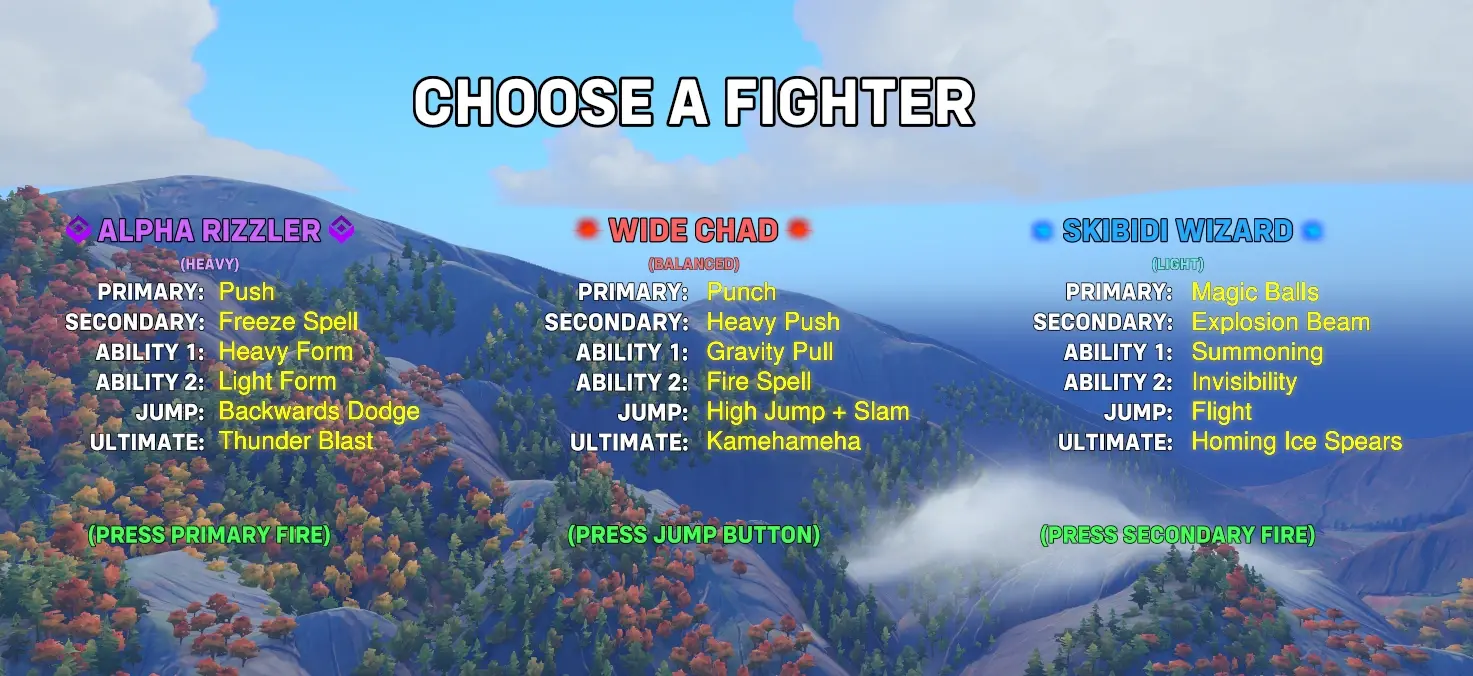
Note that the ability buttons (Primary Fire, etc) are right-aligned, and thus we can use the default font; however, the ability names (Freeze Spell, etc) are left-aligned and so we have to use the Blizzard Global font (so might as well put it lowercase for that extra polish).
You can also use the spacesForLength() and strVisualLength() macros to do more fine grained alignment tricks (eg centering a line within a text).